How to record, edit and publish a testimony video with the phone in your pocket and the free version of DaVinci Resolve — honestly framed, safe for everyone in it, and pointed at Christ.
Abstract
A recorded testimony can be watched by people the teller will never meet, long after the day it was filmed. That reach is a gift and a responsibility. This paper is a practical guide to making a testimony video well: preparing an outline rather than a script, protecting the privacy and safety of everyone in the story, recording clean sound and good light with ordinary equipment, framing and filming, editing in the free version of DaVinci Resolve, captioning, titling within the bounds of honesty, and uploading to YouTube using the platform's own published specifications. Each technical step is checked against the current documentation from Blackmagic Design, YouTube and Apple. Each ethical step is grounded in the King James Bible: the witness who tells the truth (Ephesians 4:25), the word made plain (Habakkuk 2:2), and the gospel that was "not done in a corner" (Acts 26:26). It is written for believers and churches making their first testimony video, and for anyone who wants their next one to be better.
What’s inside
·Introduction
Part 1Part 1: Before the Camera: Outline, Consent and Safety
Part 2Part 2: Equipment and Settings
Part 3Part 3: Sound and Light
Part 4Part 4: Framing and Filming
Part 5Part 5: Editing in DaVinci Resolve
Part 6Part 6: Titles, Thumbnails, Description and Upload
Part 7Part 7: Sharing, Comments and Fruit
·Conclusion
Research paper · 9 chapters · 16 notes · October 2026
About 35 minutes · 9 parts · the PDF has the same text
Introduction
2 min read
A testimony told across a table reaches one person. A testimony recorded and published can reach thousands, in places the teller will never go, years after the day it was filmed. That is an extraordinary gift. Paul, standing before King Agrippa, said of the gospel, "this thing was not done in a corner" (Acts 26:26). A testimony video takes a story out of the corner and puts it where anyone can find it.
It is also a responsibility. Everything you say on camera is permanent and public. Every person in the story is exposed. Every claim carries the weight of a published record. And a badly made video — inaudible, dark, shaky, rambling — can bury a true story under its own distractions.
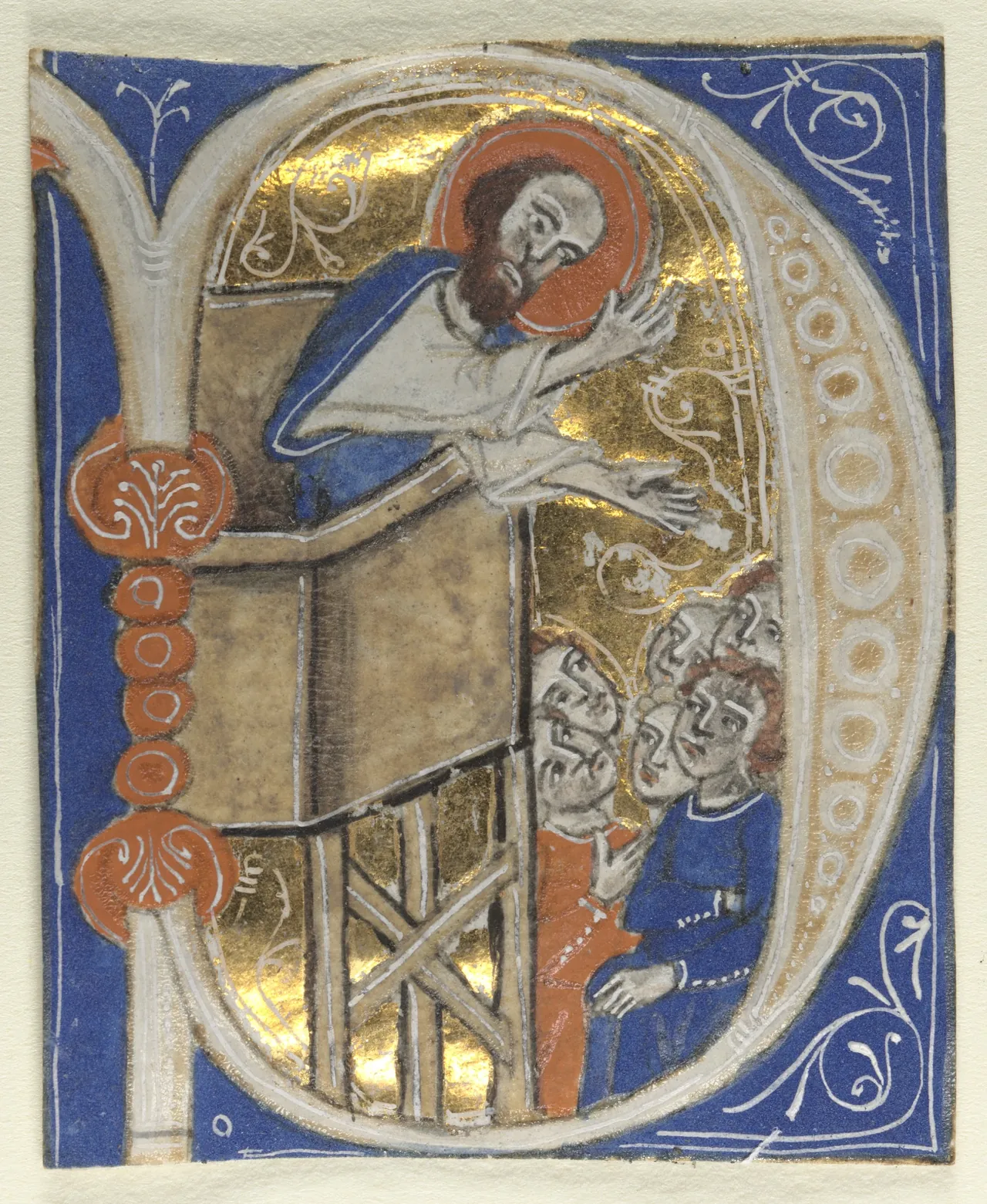
A thirteenth-century Italian Bible initial of St. Paul preaching, recalling the apostle who told the story of his own conversion before King Agrippa.Historiated Initial Excised from a Bible: St. Paul Preaching · 1200s · Cleveland Museum of Art · CC0 · museum record · Galeria Regni
This paper is a practical guide to making a testimony video well. It assumes no experience and very little equipment: a phone, a microphone, a window and a free editing program. It is the fifth in a family of papers on testimony. Craft Your Testimony (Level 1) covers finding and writing your story; Share Your Testimony covers telling it aloud in about three minutes; Share Your Story (Level 2) covers moving from your story to the gospel; Testimony Ministry covers gathering and caring for the stories of others. This one covers the camera.
What this paper is
It is a production manual, checked against the current published documentation of the tools it recommends. Where it gives a specification — a file format, a bitrate, a thumbnail size — the source is footnoted, because these things change, and you should check the source before you rely on them. Every specification and platform rule was checked against those pages in October 2026. Where the paper touches the law (privacy, children, copyright), it is general information, current as of October 2026, not legal advice; laws vary by place. Where it gives ethical guidance, the guidance is grounded in Scripture.
Seven parts follow. Part 1 covers preparation: outline, consent and safety. Part 2 covers equipment and settings. Part 3 covers sound and light. Part 4 covers framing and filming. Part 5 covers editing in DaVinci Resolve. Part 6 covers titles, thumbnails, captions and upload. Part 7 covers sharing, comments, measurement and a set of checklists.
A word about me
Eventually I gave up and called myself an atheist. I decided to read the Bible for one reason: to disprove it, so I'd have an excuse to stop going to church for good. It did the opposite. I came to faith in 2022, and my wife came to faith a month later. I recorded my testimony, and you can watch it at youtube.com/watch?v=FR7cNUiaAqU. I also host a podcast, The King Is Coming Show, on which guests tell how they came to Christ. Where this paper describes how we work, it is offered as one example, not the only way.
A note on Scripture: every verse in this paper is quoted from the King James Bible. You can read it free in the 1611 Reader at kylelauriano.com/library. If you put Scripture on screen in your video, quote it exactly from the King James Bible and check it word for word before you publish.
Part 1 — Before the Camera: Outline, Consent and Safety
4 min read
This part matters because most problems with testimony videos begin before anyone presses record. A rambling video usually comes from no plan; a regretted video usually comes from no thought about who might watch it. An hour of preparation saves days of editing and years of regret.
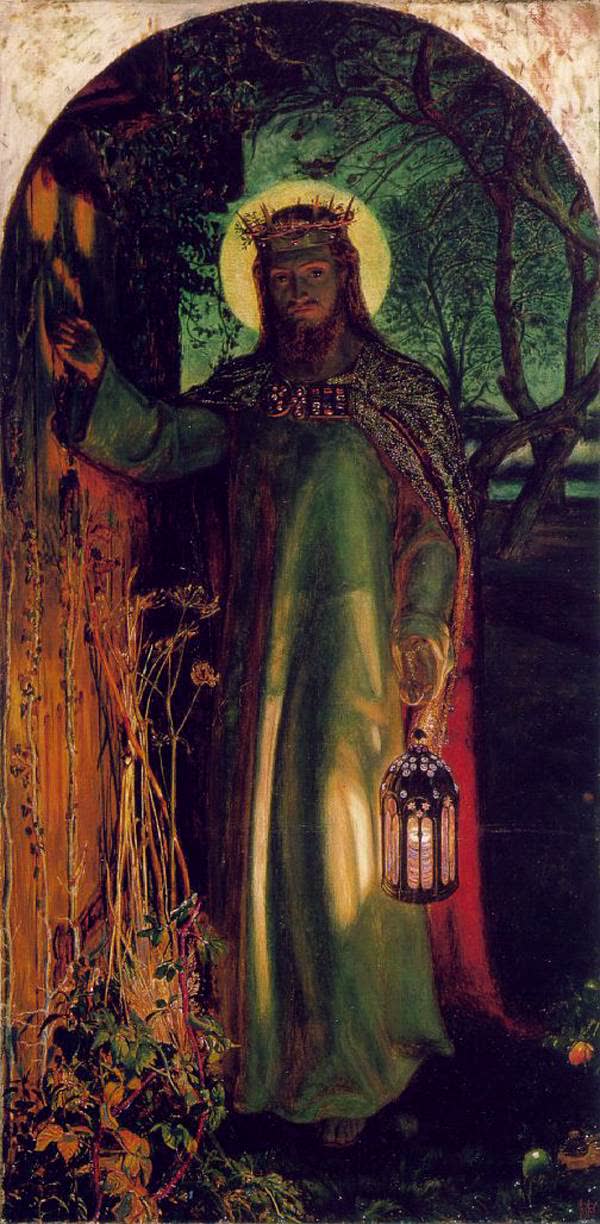
William Holman Hunt’s The Light of the World (1853) — Christ knocking at a door with no outside handle; it only opens from within.William Holman Hunt, 1853 · Public domain
Know your story first
Before you think about cameras, know your story. The companion paper Craft Your Testimony walks through remembering truthfully, finding the four movements (before, turning, after, invitation) and writing a draft. Share Your Testimony shows how to compress it to about three minutes. Do those first. A video does not fix an unclear story; it records it.
Outline, not script
You have two choices for what to say on camera.
A script read from a screen or memorised word for word. It is tidy and predictable, and it almost always sounds read. Viewers can tell, and it makes them trust you less.
An outline of anchors — your opening sentence, one image for each movement, your gospel sentences, and your closing sentence — with everything in between told freshly in your own words. It sounds like a person talking, because it is.
For a testimony, use an outline. Write your anchors on a card and keep it just out of shot. You will probably not need it, but knowing it is there calms the nerves. The one exception is Scripture: if you quote a verse on camera, read it from the King James Bible rather than reciting from memory, so that the words are exact.
Decide the length and the versions
Decide before you film what you are making. Common versions:
A long-form video of five to fifteen minutes, telling the whole story, for YouTube and your church's website.
A short version of about three minutes, for sharing in messages and on social media.
Vertical clips of up to three minutes for YouTube Shorts and similar formats. YouTube's own guidance says Shorts can be up to three minutes long, and that Shorts can be uploaded at a maximum resolution of 1080p.1
You can make all three from one recording if you film for them (Part 4).
Truthfulness on camera
Everything the companion papers say about honest testimony applies doubly on video, because a video is a published record. In brief:
Lay down the thing as it was. John Bunyan, writing his own testimony, said he could have "adorned all things" but dared not; he would "be plain and simple, and lay down the thing as it was."2 Do not inflate your story for the camera.
Mark experience as experience. "I felt", "I sensed", "I believe" — keep those words. Do not state as public fact what you only experienced or believe.
Keep Christ at the centre. "For we preach not ourselves, but Christ Jesus the Lord" (2 Corinthians 4:5).
Make the gospel plain. Somewhere in the video, the viewer should hear, in your words, that we have sinned against a holy God, that Christ died for sinners and rose again, and that we are saved by grace through repentance and faith.
Other people in your story
Your story includes other people. A video exposes them in a way a conversation does not.
No names without consent. Not of former partners, abusers, friends, family members or churches, unless they have agreed.
No identifying details. A first name plus a town plus an employer is enough to identify most people.
No one on camera without consent. If anyone else appears — a spouse, a pastor, a friend — get their agreement, in writing if the video will be published.
Children. If your children appear, think hard about whether they should. A child cannot consent for the adult they will become. If they do appear, show them briefly, with no names, schools or other details. For any minor who is not your own child, get a parent's or guardian's written permission first. The law on releases and on using a person's image varies from state to state; a written, signed permission is the safe habit everywhere.
YouTube's privacy guidelines let a person who is uniquely identifiable in a video — or, in some cases, a parent, guardian or legal representative acting for them — ask for removal of content that shows their image, full name or other personal information without consent. YouTube weighs whether there is "enough info in the video that allows others to recognize you", along with public interest and consent.3 It is far better to respect people from the start.
Your own safety
You are about to publish your face, your voice and your story to anyone in the world. Think about who might watch it.
If anyone has threatened you — a former partner, a group you have left, family members angry at your conversion — talk to your pastor before you publish, and consider whether you should publish at all. If you go ahead, strip out every detail that could locate you.
Film somewhere that does not identify your home. No house numbers, street signs, visible addresses, car number plates, distinctive views from a window, or mail on the table.
Check your screens and walls. Laptops, phones, calendars, certificates, school uniforms, church banners — anything legible in the shot can identify you.
Do not announce your movements. No "we're moving to such-and-such next month," no schedules.
"A prudent man foreseeth the evil, and hideth himself: but the simple pass on, and are punished" (Proverbs 22:3). Jesus sent His disciples out "as sheep in the midst of wolves", and told them to be "wise as serpents, and harmless as doves" (Matthew 10:16). Wisdom about your safety is not a lack of faith.
At The King Is Coming Show, our rule is that guest safety outranks every other consideration. If a guest has disclosed a threat or an identifying detail, we re-confirm consent and agree which details stay in before anything is published. Apply the same rule to yourself.
This part matters because good equipment helps, but the right settings on the equipment you already have help more. A modern phone, set correctly and held still, records better video than most people need. This part tells you what to use and how to set it.
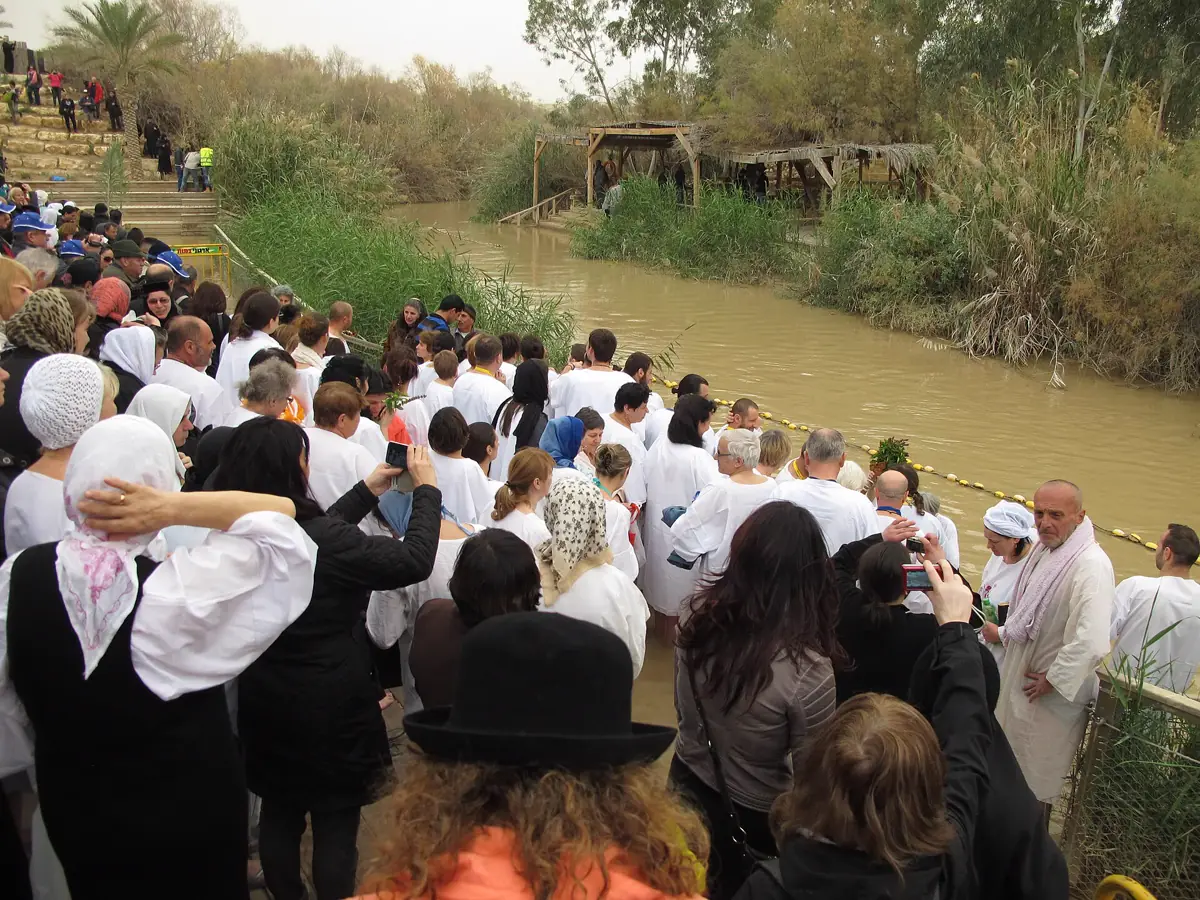
The Jordan River at Qasr el-Yahud, the traditional baptism site — pilgrims still go down into the same water.Ratoncito Perez · CC0
The camera: your phone
Use the rear camera if you can; on most phones it is better than the front one. If you are filming yourself alone and need to see the screen, the front camera is acceptable — but check the result.
Resolution. Record at 1080p (1920 × 1080) or 4K (3840 × 2160). 1080p is enough for most testimony videos and uses far less storage. 4K gives you room to crop and reframe in the edit — useful if you want to cut vertical clips from a horizontal recording.
Frame rate. Choose 24, 25 or 30 frames per second and use the same rate for everything in the project. YouTube's recommended upload settings say to encode and upload at the same frame rate you recorded at.4 Thirty frames per second is a sensible default in most of North America; 25 in much of Europe.
Format. This one matters for editing. The free version of DaVinci Resolve, which Part 5 recommends, is described by Blackmagic Design as working "with virtually all 8-bit video formats at up to 60fps in resolutions as high as Ultra HD 3840 x 2160", while real-time playback of professional 10-bit formats and accelerated H.264 and H.265 hardware decoding are listed among the features of the paid Studio version.56 Many recent phones record in a 10-bit HDR format by default. To avoid trouble:
On an iPhone, Apple's instructions are: open Settings, tap Camera, tap Formats, then tap Most Compatible; new videos will then use the H.264 format.7 Also turn off HDR video recording in the Camera settings if your phone offers it.
On other phones, look in the camera settings for an option to record in H.264 rather than HEVC/H.265, and to turn off HDR video.
Whatever phone you use, record a ten-second test clip and import it into Resolve before the day of the shoot. If it plays smoothly, you are fine.
Lock exposure and focus. Phones constantly adjust brightness and focus as you move, which makes the picture pulse. Most phone cameras let you lock both — on many, by pressing and holding on your face on the screen until a lock indicator appears. Do it every time you start a take.
Before you press record: - Clean the lens. A fingerprint smear is the most common cause of a soft, hazy picture. - Turn on Do Not Disturb or airplane mode, so a call or notification does not interrupt the take. - Check you have plenty of free storage and battery. Plug in if you can.
Support: a tripod
A shaky picture is distracting. Use a tripod with a phone clamp, or prop the phone securely on a stack of books at the right height. Do not hold it in your hand for a sit-down testimony.
Set the camera at eye level or very slightly above. A camera looking up at you from a table is unflattering and makes you seem to loom over the viewer.
Sound: the most important piece of equipment
If you can afford only one purchase, buy a microphone. Viewers will forgive an ordinary picture, but they will not sit through bad sound. The phone's built-in microphone is designed to pick up everything in the room — the echo, the fridge, the traffic — and it is usually too far from your mouth.
A lavalier (clip-on) microphone is the best choice for a sit-down testimony. It clips to your shirt about a hand's width below your chin and records your voice close up. They come in two kinds:
Wired, plugging into the phone directly or through an adapter. Inexpensive and reliable. Check that the connector matches your phone.
Wireless, with a small transmitter clipped to you and a receiver on the phone or camera. More convenient, more expensive, and with batteries to charge.
Clip it on the centre of your chest, facing up toward your mouth, and keep it clear of clothing that will rub against it, necklaces and hair. Run the cable under your shirt if it is wired.
For a two-person interview, give each person their own microphone, recorded to separate tracks if your equipment allows. For remote interviews, a dedicated remote-recording service that records each participant locally will give far better sound than a video call recording.
Light: start with a window
You do not need studio lights. You need to know where the light is.
Face a window, or sit side-on to it, during the day. Soft daylight from a window is the most flattering light most people have.
Never sit with a window behind you. The camera will expose for the bright window and turn you into a silhouette.
Avoid mixing light colours. Daylight is blue-ish; household bulbs are orange-ish. If you are lit by both, your face will be two colours. Turn off the room lights when using a window, or close the curtains and use lamps only.
Avoid harsh overhead light, which casts dark shadows under the eyes.
If you want to buy a light, a single soft LED panel with adjustable brightness and colour temperature is the most useful purchase. Part 3 explains how to place it.
A simple kit list
| Item | Essential? | Notes | |---|---|---| | Phone | Yes | Rear camera; H.264 / Most Compatible; HDR off | | Tripod with phone clamp | Yes | Or a secure stack of books | | Lavalier microphone | Yes | Wired or wireless; one per speaker | | Headphones | Strongly recommended | To check sound as you record | | A window | Yes | Or one soft LED light | | Second light or reflector | Optional | White card or foam board will do | | Computer | For editing | Check the DaVinci Resolve system requirements | | External drive | Recommended | For backing up footage |
This part matters because these two things separate a video that people watch from one they abandon. Neither is difficult. Both reward a few minutes of care before you start.
Choosing a room for sound
Hard, bare surfaces — tiled kitchens, empty rooms, bathrooms — make your voice echo, and no microphone fully fixes echo. Soft furnishings absorb it. The best room in most houses for recording is a bedroom or a living room with a sofa, carpet, curtains and full bookshelves.
Before you record:
Listen to the room. Sit silently for thirty seconds and notice every sound: a fridge, a fan, a heater, traffic, a dog, a clock. Turn off what you can.
Close the windows unless you need them open for light, and then choose a quiet time of day.
Silence phones — all of them, not just the one recording.
Put down soft things if the room is echoey: a rug, blankets on hard surfaces out of shot.
Checking your levels
Put on headphones and listen to what the microphone is actually recording. Speak at the volume you will use for the testimony — including the loudest part, where you may raise your voice or laugh. If the sound distorts at the loud moments, it is too high; if you have to strain to hear it, it is too low. Most phone recording apps and cameras show a level meter: aim for your normal speaking voice to sit well up the meter without ever touching the top. A recording that is a little too quiet can be raised later; a recording that distorts cannot be repaired.
Room tone
Before or after the take, record ten seconds of silence in the room, with everyone still and the microphone in place. This is called "room tone". In the edit you can use it to fill gaps where you have cut something out, so that the background sound does not suddenly drop away.
Placing the light
If you are using a window, sit facing it at an angle, so that the light falls across your face from one side and slightly in front. The side away from the window will be a little darker; that shading gives your face shape.
If the dark side is too dark, bounce some light back with a reflector — a sheet of white foam board or card, held or propped just out of shot on the dark side.
If you have a single LED light, use it as your main ("key") light: place it about forty-five degrees to one side of the camera and a little above your eye line, pointing down slightly toward your face. Set its colour to match the other light in the room — daylight if near a window, warm if using household lamps. If you have a second, dimmer light or a reflector, put it on the other side to soften the shadows. A third light behind you, aimed at your shoulders or the background, can separate you from the wall, but it is not essential.
The background
The background should be tidy and quiet. A bookshelf, a plant, a plain wall with a picture — anything that does not distract. Sit a metre or two in front of the wall rather than against it, so that you are not casting a shadow on it and it falls gently out of focus.
Remove anything that identifies your home (Part 1), anything with legible text, and anything that might distract or offend. A cross or an open Bible can be appropriate if it is natural to the setting; avoid staging.
This part matters because the way you are framed and the way the session runs determine whether the viewer feels addressed or merely observed — and whether you get a usable take without exhaustion.
Framing
Shot size. For a sit-down testimony, a medium close-up — from the middle of the chest to just above the head — is the standard. It is close enough to see your expressions and far enough to be comfortable.
Headroom. Leave a small gap above your head; do not cut off the top of your head, and do not leave a large empty space above it.
Position. Place your eyes about a third of the way down the frame. Many people centre their face in the middle of the frame, which leaves too much empty space above. Turn on your phone's grid lines to help.
Horizontal or vertical? Record horizontally (landscape) for a long-form video. If you also want vertical clips, either record a separate vertical take, or record in 4K horizontally with enough space around you that a vertical crop from the centre will still frame you well.
Where to look
You have two options, and should choose one before you start:
Look into the lens, as if the camera were a friend across the table. This is direct and personal, and suits a solo testimony told to the viewer.
Look at an interviewer sitting just beside the camera, with the camera slightly off to one side. This feels like a conversation the viewer is overhearing, and suits an interview.
Do not switch between them during the take, and do not look at the phone screen to check yourself while talking.
Running the session
Warm up. Talk for a few minutes before the "real" take — about anything. Your voice and face relax.
Pray. Before you begin, pray together if there is more than one of you: for clarity, for honesty, and for the people who will watch. "Let the words of my mouth, and the meditation of my heart, be acceptable in thy sight, O LORD, my strength, and my redeemer" (Psalm 19:14).
Clap at the start. If you are recording sound separately from the picture, clap your hands once in shot at the start of each take. The sharp sound and the visible clap make it easy to line up sound and picture in the edit.
Record more than you need. Tell the whole story at least twice. The second take is often better; the first sometimes has a moment you will want.
Do not stop for small stumbles. Pause, breathe, and pick up from the start of the sentence. You can cut the stumble later.
Let emotion happen. If you need to stop, stop. Do not perform emotion that is not there.
Record pick-ups. At the end, record clean versions of your opening line, your gospel sentences and your closing line, in case you need them.
Watch a minute of playback before you pack up, with headphones, to check that sound and picture both recorded.
Additional footage
Additional footage (often called "B-roll") — shots of hands turning Bible pages, a walk, a church building, a street — can be cut over your voice to give the viewer something to look at. Use it sparingly. Two cautions:
Do not stage what did not happen. A shot of you kneeling in prayer, cut over "then I got on my knees and prayed", may lead viewers to think they are watching the real moment. If you include something like that, make sure it is clearly illustrative, not documentary.
Do not use AI-generated footage that could pass for real. Part 6 explains YouTube's disclosure rules, but the deeper principle is honesty: a testimony video's whole value is that it is true.
Back up immediately
As soon as the shoot ends, copy every file to a computer and to a second drive before you delete anything from the phone. Footage that exists in only one place does not really exist.
This part matters because editing is where a long, uneven recording becomes a clear story. It is also where meaning can be changed by careless cuts. This part shows how to edit a testimony in DaVinci Resolve — a professional editing program with a capable free version — and how to edit honestly.
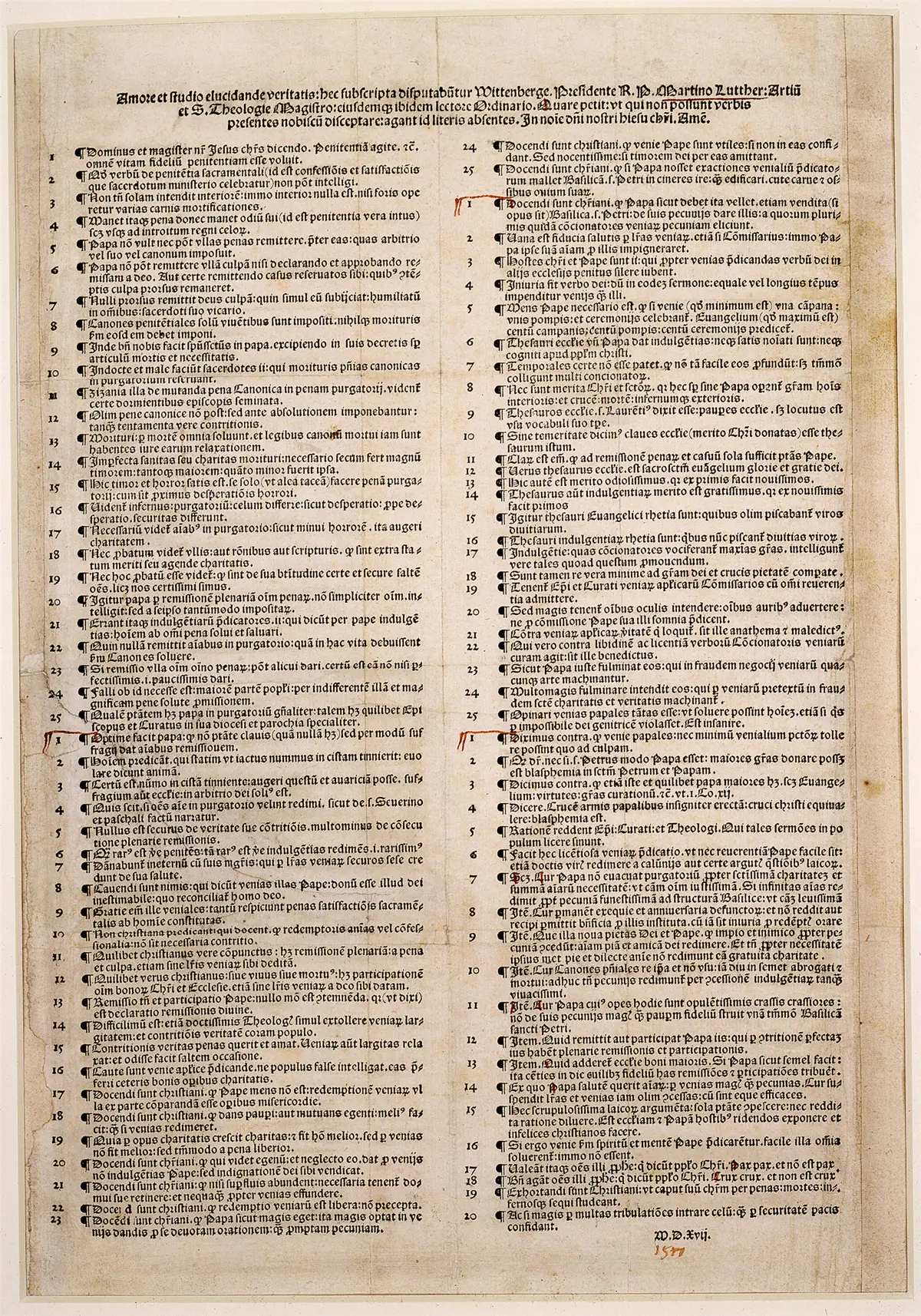
The printed Ninety-five Theses (1517) — a church-door dispute that a new medium carried across Europe in weeks.Martin Luther, 1517 · Public domain
Why DaVinci Resolve
DaVinci Resolve, made by Blackmagic Design, is used for professional film and television work, and its free version is unusually complete. The current release, DaVinci Resolve 21, is available free for Mac, Windows and Linux; a paid version, DaVinci Resolve Studio, adds further features.5 For a testimony video the free version is enough.
What the free version does not include, according to Blackmagic's own comparison, includes the "DaVinci Neural Engine AI voice isolation, music remixer and dialogue separator", AI noise-reduction tools, and real-time playback of professional 10-bit formats; the free version is limited to Ultra HD resolution at up to 60 frames per second.6 That is why Part 2 recommended recording in an 8-bit H.264 format, and why Part 3 put so much weight on recording clean sound in the first place.
At The King Is Coming Show, every video we publish is edited and rendered in DaVinci Resolve. One program, start to finish, means one set of settings that cannot disagree with itself.
Blackmagic publishes training books and videos on its website, including The Beginner's Guide to DaVinci Resolve, with downloadable lesson files.8 If you have never edited before, work through the first few lessons of the beginner's guide before you start on your testimony.
The pages
Resolve is organised into pages, chosen from buttons along the bottom of the screen:
Media — bring in and organise your files.
Cut — a fast, simplified editor, good for quick assembly.
Edit — the full editor, with a traditional timeline.
Fusion — visual effects and motion graphics (not needed for most testimonies).
Color — colour correction.
Fairlight — audio mixing.
Deliver — export the finished video.
You can do a whole testimony video on the Edit, Color, Fairlight and Deliver pages.
Step 1: Set up the project
Create a new project. Before you add any footage, open the project settings and set:
Timeline resolution to match your output — 1920 × 1080 for a standard horizontal video.
Timeline frame rate to match your recording (24, 25 or 30). Set this first; Resolve makes it difficult to change once you have started editing.
If you are making a vertical version later, you will make a second timeline at 1080 × 1920.
Step 2: Import and organise
On the Media page, bring in your video files, your separate audio files (if any) and your room tone. Make bins (folders) for "Takes", "Audio", "B-roll" and "Graphics". Name your clips sensibly: "Take 1", "Take 2", "Pick-ups".
Step 3: Sync separate sound
If you recorded sound on a separate device, line it up with the picture. Resolve can synchronise clips automatically by matching their audio waveforms: select the video clip and the matching audio clip in the media pool, right-click, and choose the option to auto-sync audio based on waveform. If that does not work, line them up by hand on the timeline using the clap from the start of the take.
Step 4: Choose and assemble
Watch every take all the way through, with your outline beside you, and mark the best version of each section. Then, on the Edit page, lay down a rough assembly: the best opening, the best "before", the best turning, the best "after", the best invitation. At this stage, do not worry about length or polish. Get the story in order.
Step 5: Tighten — honestly
Now cut. Remove stumbles, false starts, long pauses and tangents. Aim for the length you decided in Part 1.
This is where honesty matters most. The rules are simple:
Cut for length, never for meaning. Removing a tangent is editing. Removing "I'm not sure what it was" so that an experience sounds more certain is falsification.
Keep the qualifiers. "I felt", "I believe", "it seemed" — those words are part of the truth of the story.
Do not splice sentences. Joining the first half of one sentence to the second half of another to make a statement you never made is fabrication, however smooth the cut.
Keep the order where order matters. Do not move an answer to sit after a different question.
"Wherefore putting away lying, speak every man truth with his neighbour" (Ephesians 4:25). An edit is a kind of speech. Paul's standard applies to it: "not walking in craftiness, nor handling the word of God deceitfully; but by manifestation of the truth commending ourselves to every man's conscience in the sight of God" (2 Corinthians 4:2).
Covering cuts. When you cut out the middle of a sentence, the picture will jump. You can cover the jump by cutting to B-roll for a moment, by using a slightly closer framing of the same shot (easy if you recorded in 4K), or by simply accepting the jump — viewers of online video are used to it. What you must not do is hide the cut in a way that implies continuity you have removed.
Using room tone. If a cut leaves an abrupt change in background sound, lay a little room tone underneath to smooth it.
Step 6: Text on screen
Keep text simple and readable. "Write the vision, and make it plain upon tables, that he may run that readeth it" (Habakkuk 2:2).
A name title (a "lower third") at the start: your first name, and perhaps one line — "Former atheist" — if it is true and you are comfortable with it. No surnames, towns or employers if safety is any concern.
Scripture, if you quote it: the exact King James words and the reference. Check them word for word against the King James Bible before you publish. A verse on screen that does not match the text is a misquotation of God's word, however small the difference.
The disclaimer line. Every testimony we publish carries a one-line disclaimer, such as: Kyle's account of what happened to him, shared as his testimony — weigh it for yourself. Put it on screen at the start or end, and in the description.
An end card with where to go next — your church, a link to a Bible reader, an invitation to get in touch.
Use plain fonts, large enough to read on a phone, with enough contrast against the background. Keep each piece of text on screen long enough to read twice.
Step 7: Colour
On the Color page, you only need to do two things for a testimony video:
Fix the white balance so that skin looks natural, neither orange nor blue.
Fix the exposure so that the face is clearly lit, without blown-out highlights or crushed shadows.
The primary colour wheels and the scopes on the Color page let you do both. If your takes were shot in the same light, correct one clip and copy the correction to the others. Do not add dramatic "looks" or heavy filters; the aim is a natural picture.
Step 8: Sound
On the Fairlight page, or with the audio tools on the Edit page:
Balance the levels so that your voice is consistent from start to finish. Resolve can normalise audio levels on selected clips, which is a good starting point.
Remove low rumble with a high-pass filter in the equaliser, if there is traffic or air-conditioning noise.
Even out loud and quiet moments gently with a compressor, if your voice varies a lot.
Add music only if it helps, and keep it well beneath your voice. Many testimony videos are better with no music at all, especially during the turning.
Music licensing. Do not use commercial music you do not have the rights to. YouTube's Audio Library, found in YouTube Studio, provides production music and sound effects that YouTube describes as "copyright-safe": tracks downloaded from it will not be claimed through YouTube's Content ID system. Some tracks are under a Creative Commons licence and require you to credit the artist in your video description; others require no attribution, and you can filter for those.9 YouTube notes that it is not responsible for "royalty-free" music from other sources.
Step 9: Captions
Many people watch video with the sound off, and some cannot hear it at all. Captions make your testimony accessible to them.
You have two main options:
YouTube's automatic captions. YouTube generates captions with speech recognition in many languages. Its own help page warns that because they are generated by machine learning, "the quality of the captions may vary", and recommends reviewing them and correcting errors in YouTube Studio.10 Always check them — especially names, Bible references and theological words, which automatic systems often get wrong.
Upload your own caption file. YouTube accepts a wide range of caption file formats, including SubRip (.srt) and WebVTT (.vtt).11 You can create a subtitle track in Resolve and export it as a subtitle file, or type or paste a transcript into YouTube Studio and let YouTube synchronise it to the video automatically.12
For vertical clips, consider burning large captions into the picture itself, since many viewers of short-form video never turn captions on.
Step 10: Review
Before you export:
Watch the whole video through once without stopping, as a viewer would.
Watch it once more with headphones, listening only to the sound.
Ask one trusted person — ideally someone who knows the story — to watch it and tell you: Is it true? Is Christ at the centre? Is anything unclear? Does anything expose anyone?
Check every word of Scripture on screen against the King James Bible.
Step 11: Export
On the Deliver page, Resolve offers ready-made presets, including one for YouTube. Choose it, check that the resolution and frame rate match your timeline, and render.
If you set the export by hand, follow YouTube's recommended upload settings. For standard (SDR) uploads, YouTube recommends an MP4 container; H.264 video with progressive scan; AAC-LC (or Opus) audio at a 48 kHz sample rate; and, for 1080p video at 24, 25 or 30 frames per second, a video bitrate of about 8 Mbps (12 Mbps at 48–60 fps). For 4K at 24–30 fps it recommends 35–45 Mbps.4
Vertical versions. Duplicate your timeline, change the new timeline's resolution to 1080 × 1920, and reframe each shot so that your face stays in the picture. Cut it down to the strongest section — often the turning — and keep it to three minutes or less if it is for Shorts.
Part 6 — Titles, Thumbnails, Description and Upload
4 min read
This part matters because the title and thumbnail are the first — and for many people the only — things they will see. They decide whether someone watches. They also make a claim, in public, about what the video contains, and that claim must be true.
Titles: sharp, never false
A title can be striking. It must never claim more than the story does. At The King Is Coming Show we work by a three-tier rule for every title:
1. Ordinary, verifiable facts may be stated plainly: Former Atheist. Raised in a Cult. Twenty Years an Addict. 2. Your own perception or belief must carry a perception verb in the title itself: I Felt, I Heard, I Believe, I Thought. 3. Action, speech or identity attributed to God — God Healed Me, Jesus Spoke to Me, I Went to Heaven — is never stated as flat fact in a title. If it belongs in the title at all, it goes behind a perception verb: I Believe God Healed Me.
Some examples, all hypothetical:
| Instead of | Try | |---|---| | God Healed My Back | I Believe God Healed My Back — Here's What Happened | | Jesus Appeared to Me | I Saw Something I Can't Explain — Then I Read the Gospels | | From Atheist to Christian in One Night | I Was an Atheist Until I Read the Bible to Disprove It | | The Truth They Don't Want You to Know | How I Came to Faith After Years of Unbelief |
The last example points to another rule: no clickbait. A title that promises a secret, a shock or a revelation the video does not contain is a lie, and "Lying lips are abomination to the LORD" (Proverbs 12:22). We also avoid quotation marks in titles: attribution is carried by grammar instead, with a first-person perception verb or a colon introducing a phrase.
Thumbnails
The thumbnail is the picture viewers see before they click.
Use a real frame of yourself with a natural, expressive face — not a staged expression of shock.
Add a few words at most, large and readable on a phone.
Do not imply what is not in the video. No images of fire, angels or heaven unless the video is clearly about a reported experience, and the text makes that clear.
Check the background for identifying details (Part 1).
YouTube's current published requirements for custom video thumbnails are a 16:9 aspect ratio (9:16 for Shorts), a minimum width of 640 pixels, an image format such as JPG or PNG, and a maximum file size of 2 MB when uploading from a phone or 50 MB from a computer; its help page gives 3840 × 2160 pixels as the resolution for video thumbnails. Uploading a custom thumbnail requires a verified account.13 At The King Is Coming Show we assemble our thumbnails in Canva; any good design tool will do.
The description
The description is where you say what the title could not. Include:
A few honest sentences about the story.
The disclaimer line, e.g. Sam's account of what happened to him, shared as his testimony — weigh it for yourself.
Scripture references you quoted, with the exact King James words if you quote them.
Where to go next: your church, the free 1611 Reader at kylelauriano.com/library, a way to get in touch.
Music credits, if any Audio Library track requires attribution.
No personal contact details — use a church or ministry address, never a personal email or phone number.
Settings that matter
When you upload, YouTube will ask several questions. Three of them deserve care.
Audience: is it "made for kids"? YouTube requires every creator to say whether each video is made for children, under an agreement with the US Federal Trade Commission to help creators comply with the Children's Online Privacy Protection Act (COPPA). YouTube says it is the creator's "legal responsibility" to designate content accurately; content is made for kids when children are its primary audience or it is directed at them, and being family-friendly does not by itself make it so. In the United States a "kid" here means anyone under 13, and YouTube warns that setting this wrongly can bring "legal consequences under COPPA and other laws".14 The federal rule that carries out COPPA is the Federal Trade Commission's Children's Online Privacy Protection Rule, 16 C.F.R. Part 312, which defines a child as "an individual under the age of 13"; the FTC amended it in 2025, and the amended rule took effect on 23 June 2025.15 Most testimony videos are for a general audience and are not made for kids. If you are making a testimony specifically for children, mark it accordingly. This is general information, current as of October 2026, not legal advice; for the rule itself, see the FTC's COPPA pages at ftc.gov.
Altered or synthetic content. YouTube requires creators to disclose realistic content that has been generated or meaningfully altered — including making a real person appear to say or do something they did not, altering footage of a real event or place, or generating a realistic scene that did not occur. You declare it with the "AI use" setting in YouTube Studio. Colour correction, captions, beauty filters and production help such as script outlines do not require disclosure.16 A testimony video should not contain realistic synthetic footage at all. If, for some reason, yours does, disclose it.
Visibility. Upload as Private or Unlisted first. Watch the uploaded version on a phone and a computer. Check the automatic captions. Then publish.
This part matters because publishing is not the end of the work. Someone has to share the video with the people who need it, answer the comments it draws, and look honestly at what it has done. And this part closes the paper with the checklists that pull everything together.
Sharing
Send it to your church first. Your pastor and church family should see it before the world does.
Send it personally. A message to one friend — "I recorded my story; I'd love you to see it" — reaches further than a public post. The man from the tombs was told, "Go home to thy friends" (Mark 5:19).
Post it where your friends are, with a sentence of your own, not just a link.
Use the short versions to point people to the full one.
Comments
A public video draws public comments: encouragement, questions, criticism and sometimes hostility.
Answer questions graciously. "But sanctify the Lord God in your hearts: and be ready always to give an answer to every man that asketh you a reason of the hope that is in you with meekness and fear" (1 Peter 3:15). Keep answers short; offer to continue privately.
Do not argue. "And the servant of the Lord must not strive; but be gentle unto all men, apt to teach, patient" (2 Timothy 2:24). And: "A soft answer turneth away wrath: but grievous words stir up anger" (Proverbs 15:1). Proverbs gives two pieces of advice about fools, side by side: "Answer not a fool according to his folly, lest thou also be like unto him. Answer a fool according to his folly, lest he be wise in his own conceit" (Proverbs 26:4-5). Wisdom is knowing which applies. Often the best answer to a mocking comment is no answer.
Protect your viewers. YouTube Studio lets you review, hold and remove comments. Remove abuse, threats, spam and anything that exposes another person. Never leave up a comment that reveals someone's identity or location.
Do not reveal more in the comments than in the video. Commenters will ask for details you deliberately left out. You do not owe them.
Measuring
YouTube Studio's analytics will tell you how many people watched, for how long, and where they stopped. That information is useful for making the next video clearer: if most viewers leave in the first thirty seconds, your opening needs work; if they leave at a particular minute, something there is losing them.
But views are not fruit. "I have planted, Apollos watered; but God gave the increase" (1 Corinthians 3:6). The measure that matters cannot be seen in the dashboard: someone who heard the gospel, someone who went back to church, someone who turned to Christ. When a viewer writes to tell you something like that, keep it, with their permission. And remember what Paul required of stewards: "Moreover it is required in stewards, that a man be found faithful" (1 Corinthians 4:2). Not viral. Faithful.
Checklist: before the shoot
Story written and shaped (four movements); outline card made.
Length and versions decided (long-form, short, vertical).
Consent obtained from anyone who will appear or be named.
Location chosen: quiet, soft furnishings, no identifying details visible.
Phone set: rear camera, 1080p or 4K, chosen frame rate, Most Compatible / H.264, HDR off.
Test clip imported into Resolve and plays smoothly.
Microphone tested with headphones; levels set.
Light checked: facing the window or LED at forty-five degrees; no window behind; no mixed colours.
Background tidy; nothing legible or identifying.
Phone on Do Not Disturb; storage and battery checked; lens cleaned.
Checklist: on the day
Pray.
Lock exposure and focus.
Clap at the start of each take if recording sound separately.
Record at least two full takes.
Record ten seconds of room tone.
Record pick-ups of the opening, the gospel sentences and the close.
Check playback with headphones before packing up.
Back up to two places immediately.
Checklist: in the edit
Project resolution and frame rate set before editing.
Separate sound synced.
Best takes assembled in story order.
Tightened for length, never for meaning; qualifiers kept; no spliced sentences.
Name title, disclaimer line and end card added; Scripture on screen checked word for word.
White balance and exposure corrected.
Levels balanced; rumble removed; music (if any) licensed and kept low.
Captions prepared or planned.
Reviewed by one trusted person.
Exported to YouTube's recommended settings.
Checklist: upload
Title honest (three tiers); no clickbait; no quotation marks.
Thumbnail meets specifications and implies nothing false.
Description with disclaimer, Scripture, next steps; no personal contact details.
Audience ("made for kids") set accurately.
AI disclosure set only if required.
Captions reviewed.
Uploaded Private or Unlisted, reviewed, then published.
A testimony video takes a story out of the corner. Done well, it lets people you will never meet hear what the Lord has done for you — clearly, truthfully, and in a way that points past you to Him. "Declare his glory among the heathen, his wonders among all people" (Psalm 96:3).
Doing it well is not complicated. Know your story before you film it, and tell it from an outline, not a script. Protect everyone in it, including yourself. Get the sound right, then the light. Frame yourself simply, record more than you need, and back it up at once. Edit in a capable tool — the free version of DaVinci Resolve is more than enough — and edit honestly: for length, never for meaning. Put Scripture on screen only in its exact words. Title the video sharply but truly, with your experience marked as yours and God's name never attached to a claim the video cannot bear. Follow the platform's published rules for audience, disclosure and format. Share it with your friends first, answer comments with meekness, and measure success by faithfulness rather than views.
"And whatsoever ye do, do it heartily, as to the Lord, and not unto men" (Colossians 3:23).
A next step
This week: finish your written testimony if you have not, using Craft Your Testimony. Make your outline card. Set your phone to the settings in Part 2 and record a ten-second test clip. Download DaVinci Resolve and import the clip. Next week: find your room, check the sound and the light, and record.
An invitation
If you have read this far and have no testimony to record because you have never turned to Christ, the most important thing you can do today has nothing to do with cameras. "Repentance toward God, and faith toward our Lord Jesus Christ" (Acts 20:21) is the door. My own prayer was this. Then one day I got on my knees and prayed: "Jesus, if you are real, show me — and I'll serve you." He hears prayers like that. "For whosoever shall call upon the name of the Lord shall be saved" (Romans 10:13).
"How beautiful upon the mountains are the feet of him that bringeth good tidings, that publisheth peace; that bringeth good tidings of good, that publisheth salvation." (Isaiah 52:7)
Seven people who say they met Jesus. What happened, in their own words.
Seven testimonies from The King Is Coming Show, one a morning — the story as they tell it, the verse the story lands on in the 1611 King James, and the page itself. Then the teaching that explains it. Free.
This is practical teaching, not proof. It's drawn from Scripture and from walking this road myself. If you're still weighing the basics — whether God is real, whether the Bible can be trusted — I'd encourage you to start with the Skeptic resources in the Research Hub before diving in here.